
Version 1.5.5 · GPL-3.0
Beamer
A free, open-source software KVM for Mac, Windows and Linux. Use one keyboard and mouse or trackpad across your machines on the same network, and copy on one to paste on another.
Install it on every machine you pair. All downloads
Updates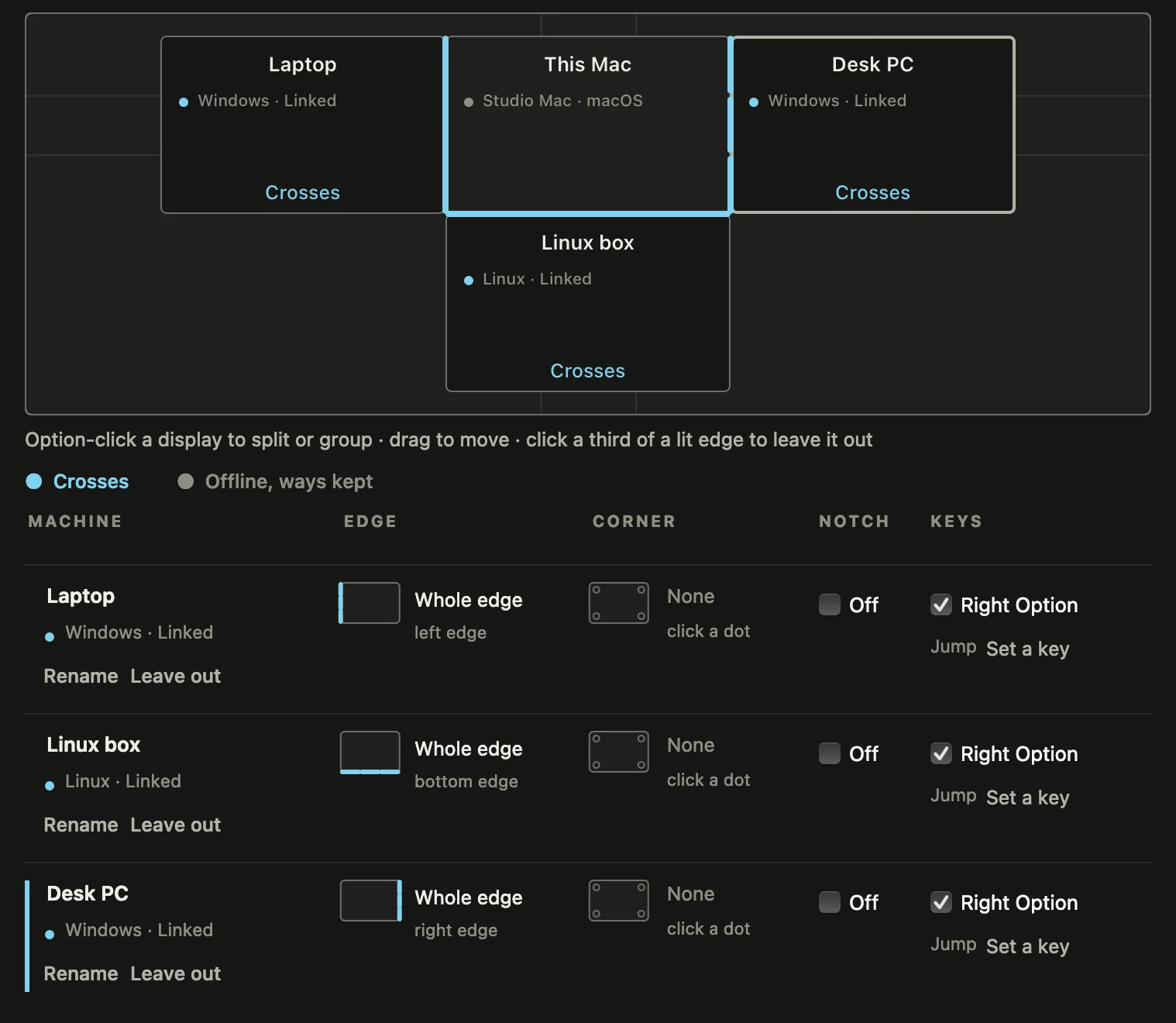
What it does
Push through the edge
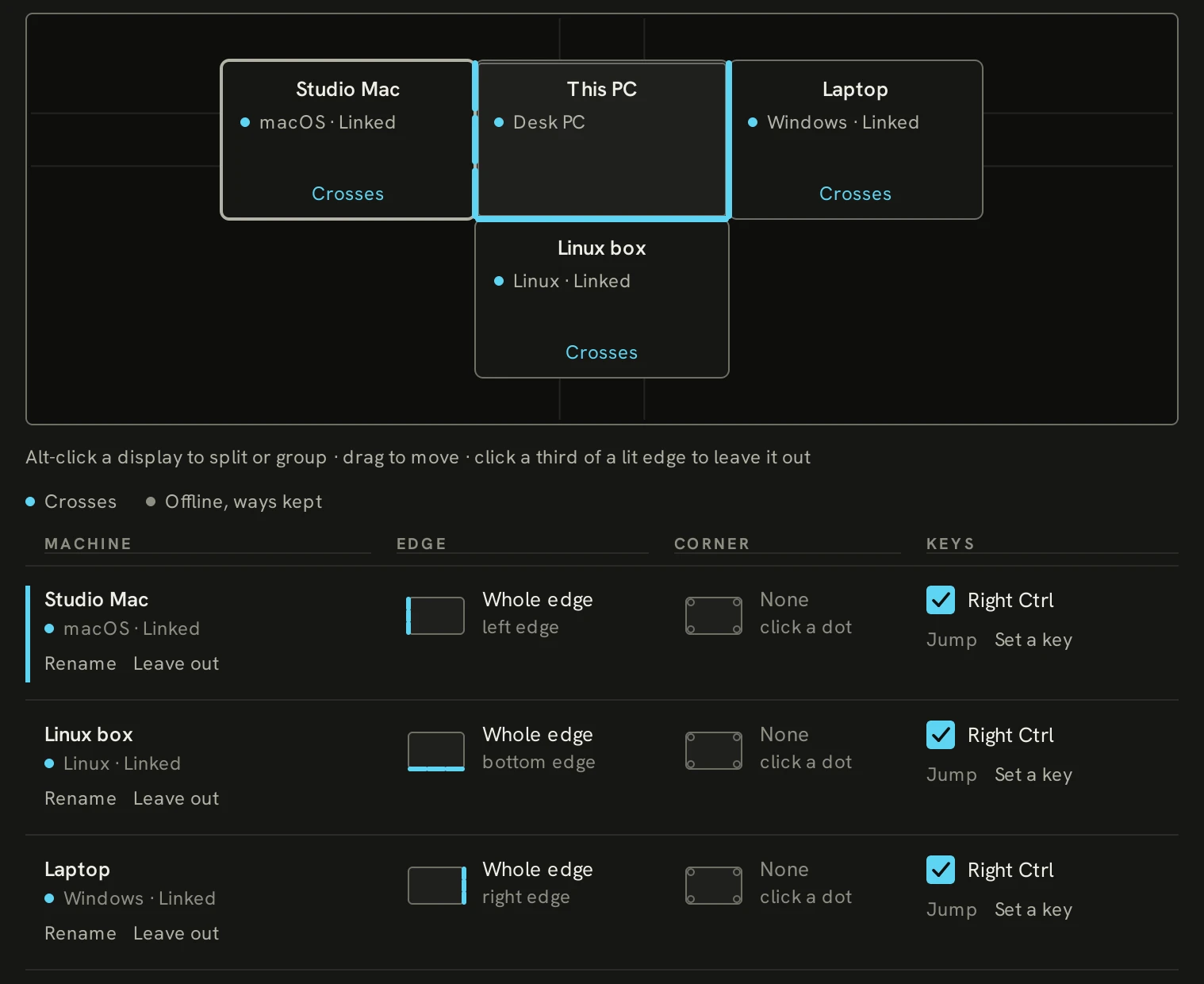
Push the pointer off the edge that faces the other machine, only along the parts of it you pick, through a corner, or up through the MacBook’s notch, and it carries on over there at the same point along the border, on the right display however your monitors are arranged. The edge lights up as you push, and the trackpad ticks at every quarter of the way through.
Or press a key
Double-tap or hold a trigger key to switch without moving the pointer. Right Option on the Mac and Right Ctrl on the PC to start with, and on either machine you can record another by pressing it. A short arrival plays around the pointer where it lands, so you never have to hunt for it. A quick shake of your mouse or trackpad while driving another machine brings input straight home.
Across three machines
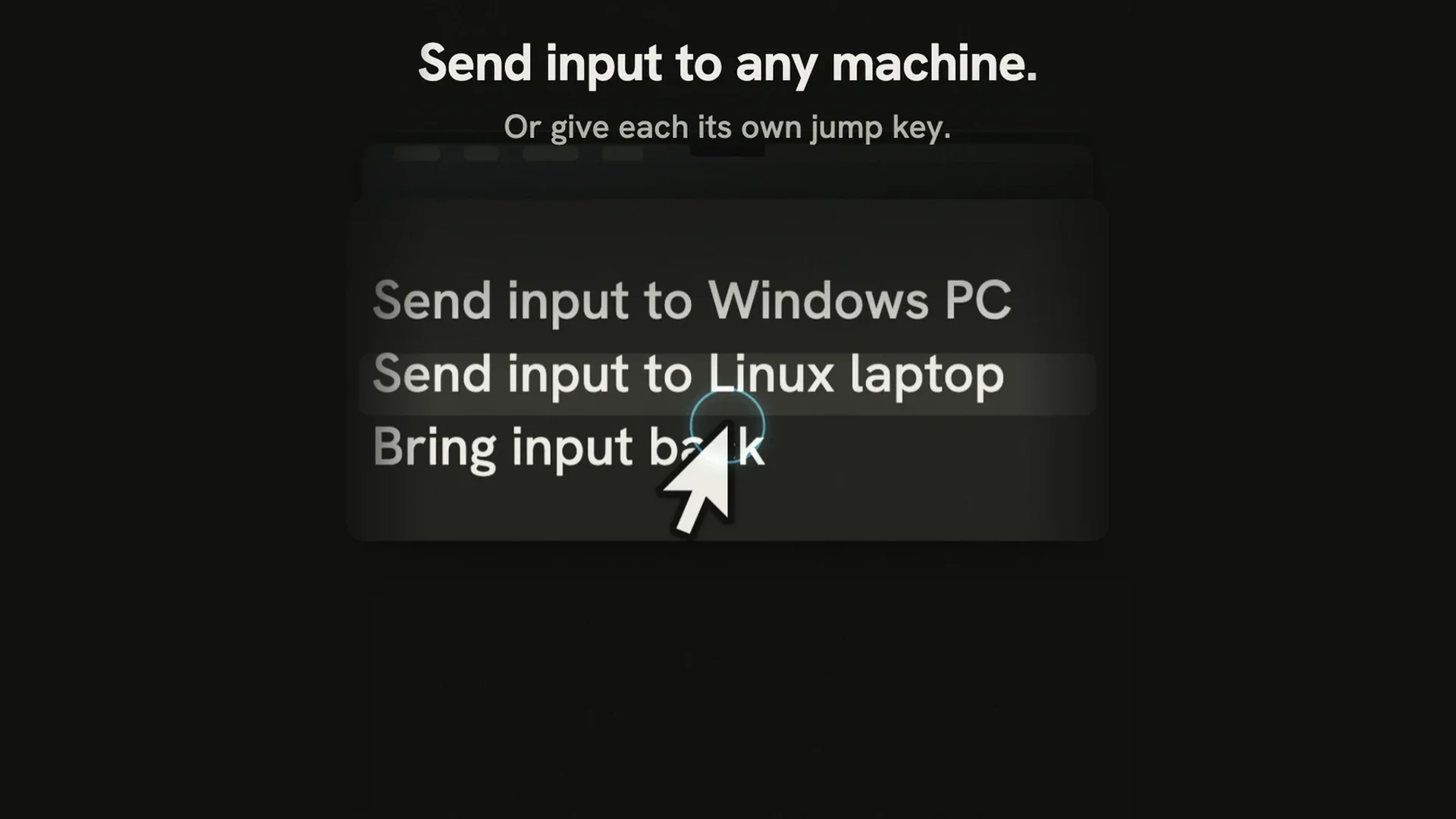
Pair three machines in a chain, with zones on each, and send input to any of them from the Mac menu or the Windows tray. Between two Macs, or two Windows PCs, every key stays where it is. Same on all machines keeps crossing resistance, drag protection, shortcuts and the edge’s style, colour, size and length in step.
The clipboard comes with you
Copy on one machine and paste on another, including text and images. It moves when you switch. Files stay where they are.
Your shortcuts still work
Between a Mac and Windows PC, Cmd becomes Ctrl and Option becomes Alt on Windows, so Cmd+C copies there too. Windows Ctrl+C arrives as Cmd+C on the Mac.
Media keys follow you to the PC
While the Mac drives the PC, its play, pause, skip, mute and volume keys act on the PC, so the Mac’s keys pause music there. While input is on a Windows laptop, the Mac’s brightness keys change the laptop’s built-in screen, and the keyboard backlight keys stay with the Mac.
Keys and buttons that stay put
Keep a mouse’s back button for this machine’s browser, or a volume key for its speakers, while your input is on the other one. Each machine has its own list, and you add a key or button by pressing it.
Mac gestures on Windows
Three or four fingers up for Task View, down for the desktop, left and right to change virtual desktop, all from the Mac’s trackpad.
Make it yours
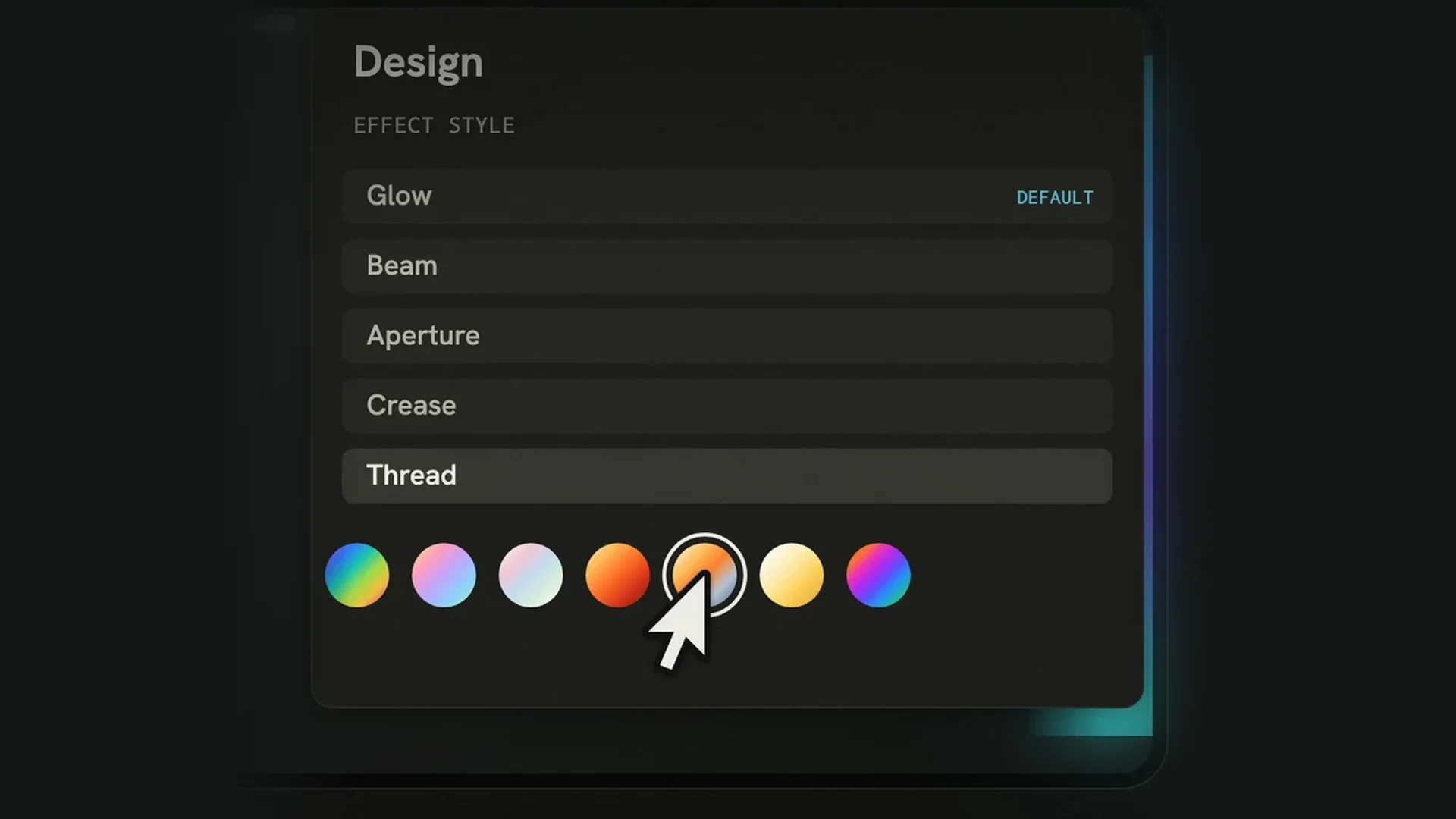
Choose a style, a colour and a size for the light at the edge, from Glow, Beam and Aperture to Folio’s Crease, Pleat and Concertina and Selvedge’s Thread, Weave and Jacquard, with colour packs to go with them. Match design follows one paired machine’s style, colour, size, length and arrival.
Out of the way when it should be
Turn on full-screen hold and a full-screen app keeps the pointer on its screen, on macOS and Windows. It is off by default, and shortcuts and jump keys still work.
Your network, nobody else’s
Nothing goes through a server. The machines talk over your local network, encrypted. Each connection uses fresh keys, and its token is not sent. You pair with a six-digit code one machine shows the other.
Free and open source
No account, no subscription. GPL-3.0 licensed, with every line of it on GitHub.
What you need
- A Mac with Apple silicon or Intel, on macOS 13 or later
- A 64-bit PC on Windows 10 or 11
- Linux on GNOME under Wayland or X11, with the Flatpak for 64-bit x86 and arm64, tested on one GNOME desktop under Wayland; KDE Plasma is experimental and untested
- All machines on the same local network
- Administrator rights on the PC, so it can type into admin windows too
Set it up
- Install on each machine. On the Mac, press the two Grant buttons, then Relaunch Beamer.
- Pair them. On one machine choose Pair a machine to show a six-digit code, and enter it on the other.
- Cross. Push through the edge, or press the trigger key.
Downloads
| Platform | File | Version | Link |
|---|---|---|---|
| Mac, universal (macOS 13 or later) | Beamer-1.5.5.dmg | 1.5.5 | Download |
| Windows 10 or 11, 64-bit | Beamer-Setup-1.5.5.exe | 1.5.5 | Download |
| Linux (Flatpak), 64-bit x86 | Beamer-1.5.5-x86_64.flatpak | 1.5.5 | Download |
| Linux (Flatpak), arm64 | Beamer-1.5.5-aarch64.flatpak | 1.5.5 | Download |
| Source | GPL-3.0, on GitHub | Source |
Linux (Flatpak, 64-bit x86 and arm64): install with flatpak install --user https://flatpak.kalkmancode.co.uk/beamer.flatpakref. On Ubuntu 24.04 or later and Debian 13 or later, run sudo apt install flatpak first, then log out and back in. The downloads above are an offline alternative, and the FAQs have the rest.
The Mac build is signed and notarised by Apple. The Windows installer is not code-signed, so choose More info, then Run anyway. The full guide is on GitHub, and what changed in each version is on kalkmancode.co.uk.
FAQs
Is it open source?
Yes. No account, no subscription. It is GPL-3.0 licensed, with every line of it on GitHub.
Does it work on an Intel Mac?
Yes. The universal Mac app runs on Intel and Apple silicon Macs with macOS 13 or later.
Does it work on Linux?
Yes, as a Flatpak for 64-bit x86 and arm64; there is no AppImage. On Fedora, Linux Mint, Pop!_OS and other distributions with Flatpak, run flatpak install --user https://flatpak.kalkmancode.co.uk/beamer.flatpakref. On Ubuntu 24.04 or later and Debian 13 or later, run sudo apt install flatpak first, then log out and back in. Flatpak adds the Kalkman Code repository and fetches the KDE runtime from Flathub. On Wayland, allow both prompts so Beamer can send and receive input. Start Beamer from the app menu, as the Flatpak cannot start at sign-in yet, and update with flatpak update or your software centre. The downloadable bundle is an offline alternative. It has been tested on one Fedora 44 GNOME desktop under Wayland, paired with a Mac and with a Windows PC. KDE Plasma support is experimental and has not been tested on real hardware, and X11 on real hardware has not been tested.
What are the limits on Wayland?
Wayland does not let Beamer see its trigger key while input is at home, so turn on Send input out with Super+Shift+B on the Crossing page to send input out with a shortcut; the trigger key still brings it back. Keys on the Stays list cannot stay on this machine while input is away. Full-screen apps cannot hold the edges, and a drag can cross if a mouse button is held before the pointer reaches an edge. Crossing effects need XWayland; a desktop without it shows none on this machine, though other machines still show theirs. Characters without a key in the desktop layout will not type. Older Ubuntu and Debian releases cannot send input out under Wayland, so use an X11 session there. On GNOME, after you cancel input capture with the desktop’s own shortcut, the edges do not work again until you change the Crossing page or restart Beamer. KDE Plasma support is experimental and has not been tested on real hardware.
Are there limits on X11?
Smooth scrolling from a physical mouse and layouts with three or more groups have not been verified. Linux does not offer gestures. The trigger key can reach the app under the pointer while input is at home.
Can I use three machines?
Yes. Set the zones on each machine and pair them directly with the others in a chain. The Mac menu and Windows tray can send input to a named machine.
Can Beamer 1.5 connect to 1.4.x?
No. Version 1.5 uses wire version 6. Update every machine you pair together, then pair them again. Your other settings carry over.
Why does Windows warn me when I run the installer?
The installer is not code-signed. Click More info, then Run anyway. The source is on GitHub, so anyone can check what it does, or build it themselves.
Does anything go through the internet?
Nothing goes through a server. The only thing that goes further than your network is a once-a-day check for a new version, which you can turn off.
It will not connect. What now?
The full guide on GitHub covers every setting and what to do when it will not connect.